
4
Yeah… I’ve seen this confusion a hundred times.
Someone opens Google Slides thinking:
“This is for presentations… how the hell do people make books with this?”
Then they try it. Everything looks off. Pages don’t align. Fonts break. Printing becomes a nightmare.
You’re not wrong.
The tool isn’t designed for books.
But — and this is the part most people miss — it’s insanely powerful if you treat it like a canvas, not a document.
Let’s get you out of the frustration loop.
The #1 Mindset Shift (This Changes Everything)
Slides ≠ Pages.
Each slide is a fixed canvas, not a flowing document like Word or Docs.
That means:
- No automatic page flow
- No paragraph pushing content to next page
- No margins unless you set them
- Everything is manually placed
Sounds annoying?
It is… until you realize:
👉 You get total design control like Canva or InDesign — without the complexity
That’s why people use it for books.
Creative Use Cases That Actually Work (Not Theory — Real Use)
1. Kids Books (Where Slides Shine Hard)

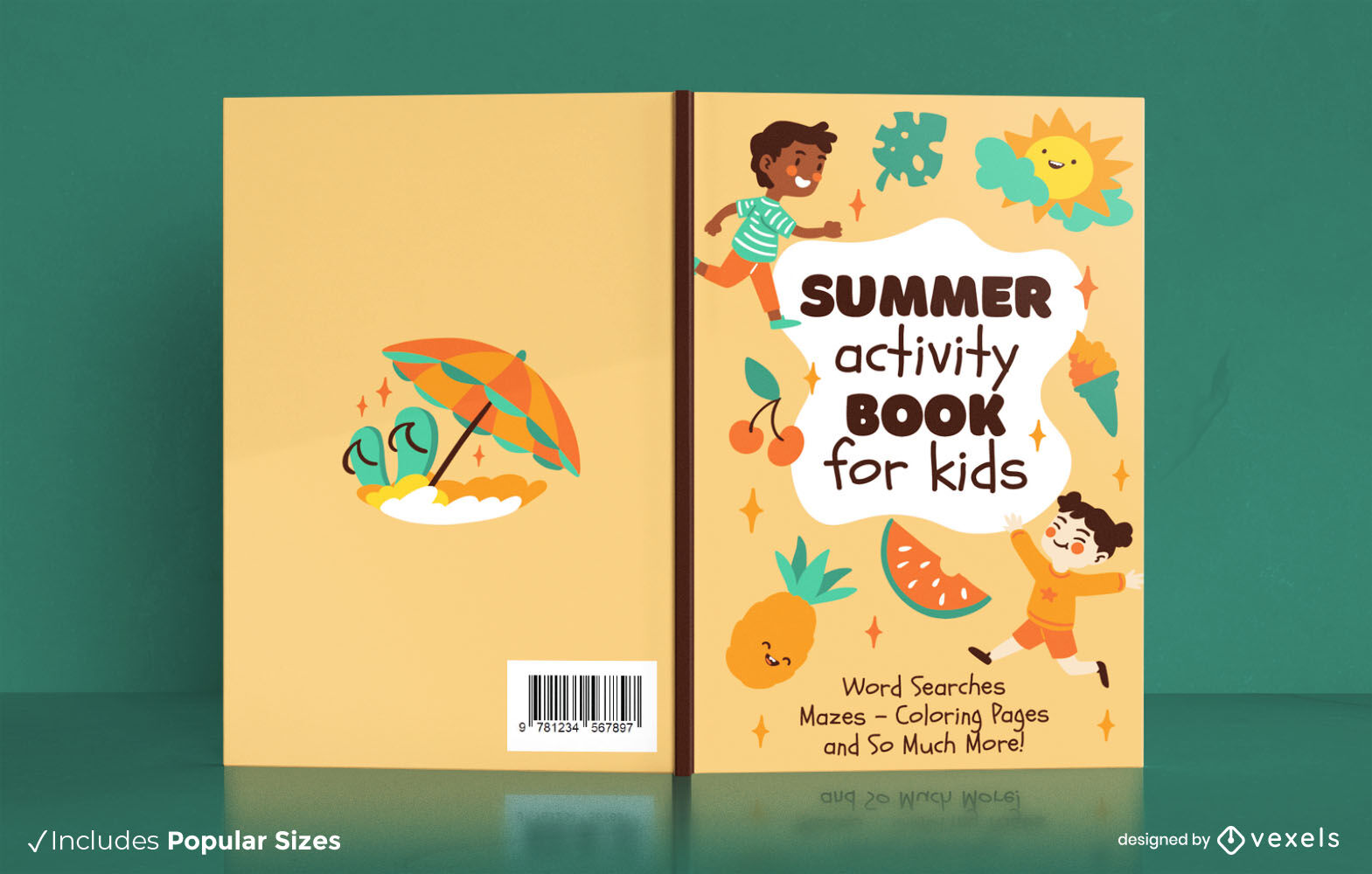
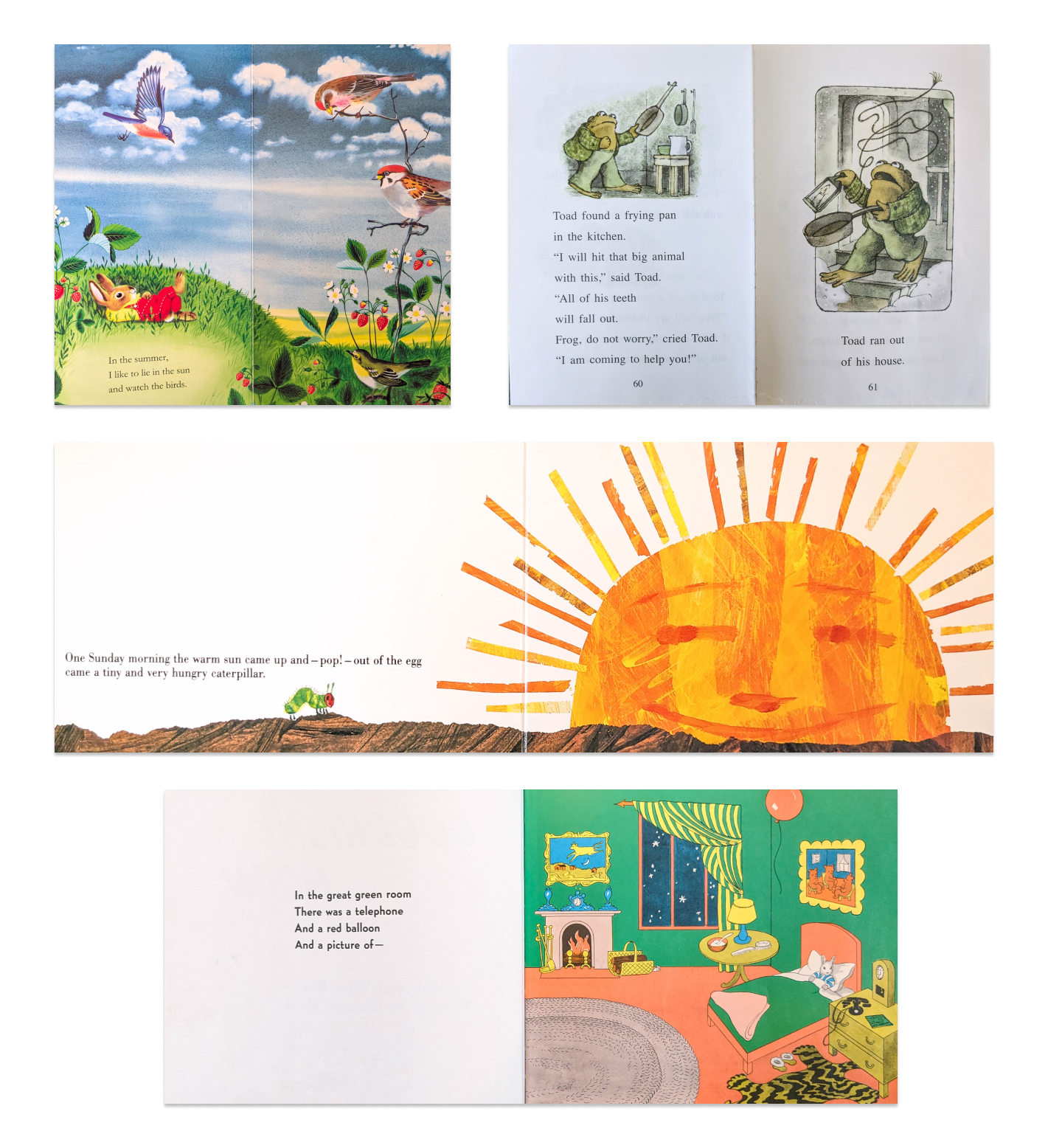
This is where Slides absolutely dominates.
Why?
- Big visuals
- Minimal text
- One idea per page
Perfect match.
Use it for:
- Storybooks
- Alphabet books
- Early reader books
- Coloring books (export black outlines)
Critical move:
Set slide size to 8.5 x 8.5 inches (square books sell well)
2. Workbooks & Planners (Underrated Goldmine)
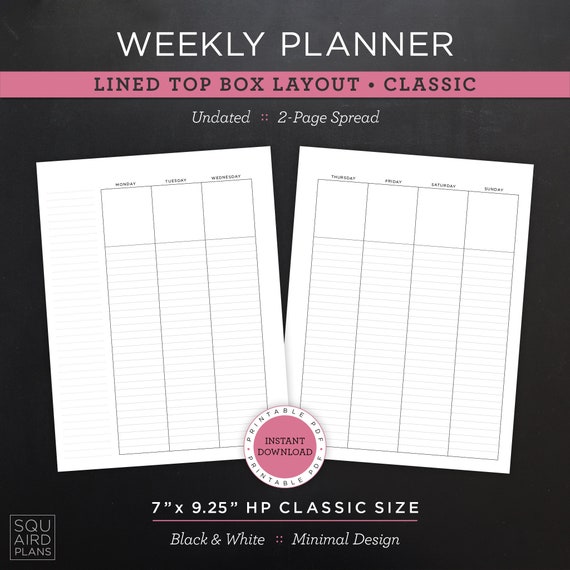


Most people overcomplicate this.
Slides works beautifully because:
- You can place lines, boxes, shapes easily
- Alignment tools are simple
- You control spacing exactly
Use it for:
- Journals
- Habit trackers
- Business planners
- Study worksheets
What beginners mess up:
They forget print margins.
👉 Always leave 0.25 inch safe zone around edges.
Otherwise KDP cuts your content.
3. Lead Magnets / Ebooks (Fastest to Build)


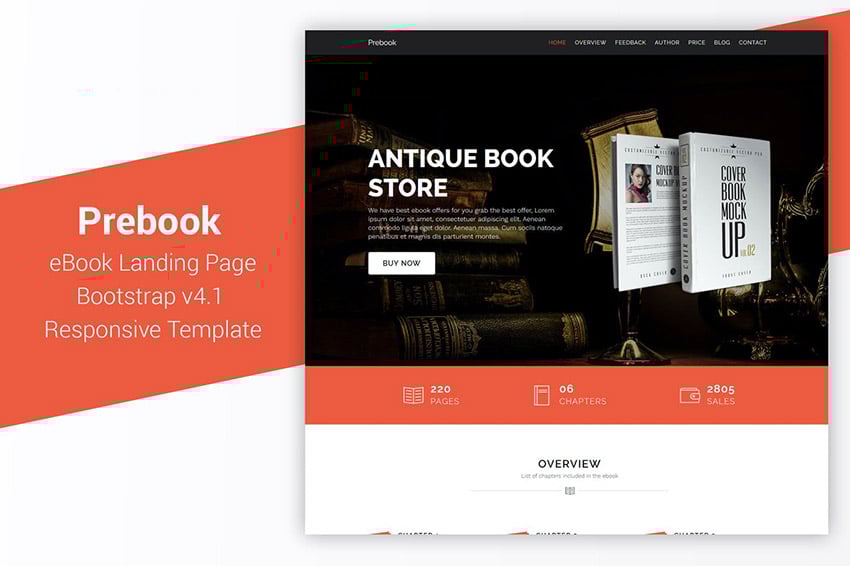
Need something quick?
Slides beats everything for speed.
Use it for:
- Free PDFs
- Mini guides
- Checklists
- Business ebooks
Pro tip most ignore:
Use Master Slides for consistency.
Set:
- Fonts
- Header style
- Page numbers
Once done → duplicate slides → done.
4. Visual Magazines / Lookbooks


This is where Slides becomes dangerous (in a good way).
You can create:
- Brand lookbooks
- Portfolio books
- Recipe books
- Fashion catalogs
Because:
👉 It behaves like a design tool, not a text editor
5. KDP Low Content Books (Money Use Case)
Tie this to Amazon KDP.
Slides is secretly perfect for:
- Coloring books
- Puzzle books
- Journals
- Log books
Why?
- Export clean PDFs
- Duplicate pages quickly
- Simple layout control
One thing you MUST get right:
👉 Export as PDF (Print quality) — not standard PDF
The Biggest Mistakes (I See These Every Week)
Mistake 1: Treating It Like Google Docs
You try to type long paragraphs…
Everything breaks.
Fix:
👉 Keep text blocks short and controlled
Mistake 2: Ignoring Slide Size (This Kills Print)
Default is 16:9.
That’s useless for books.
Fix:
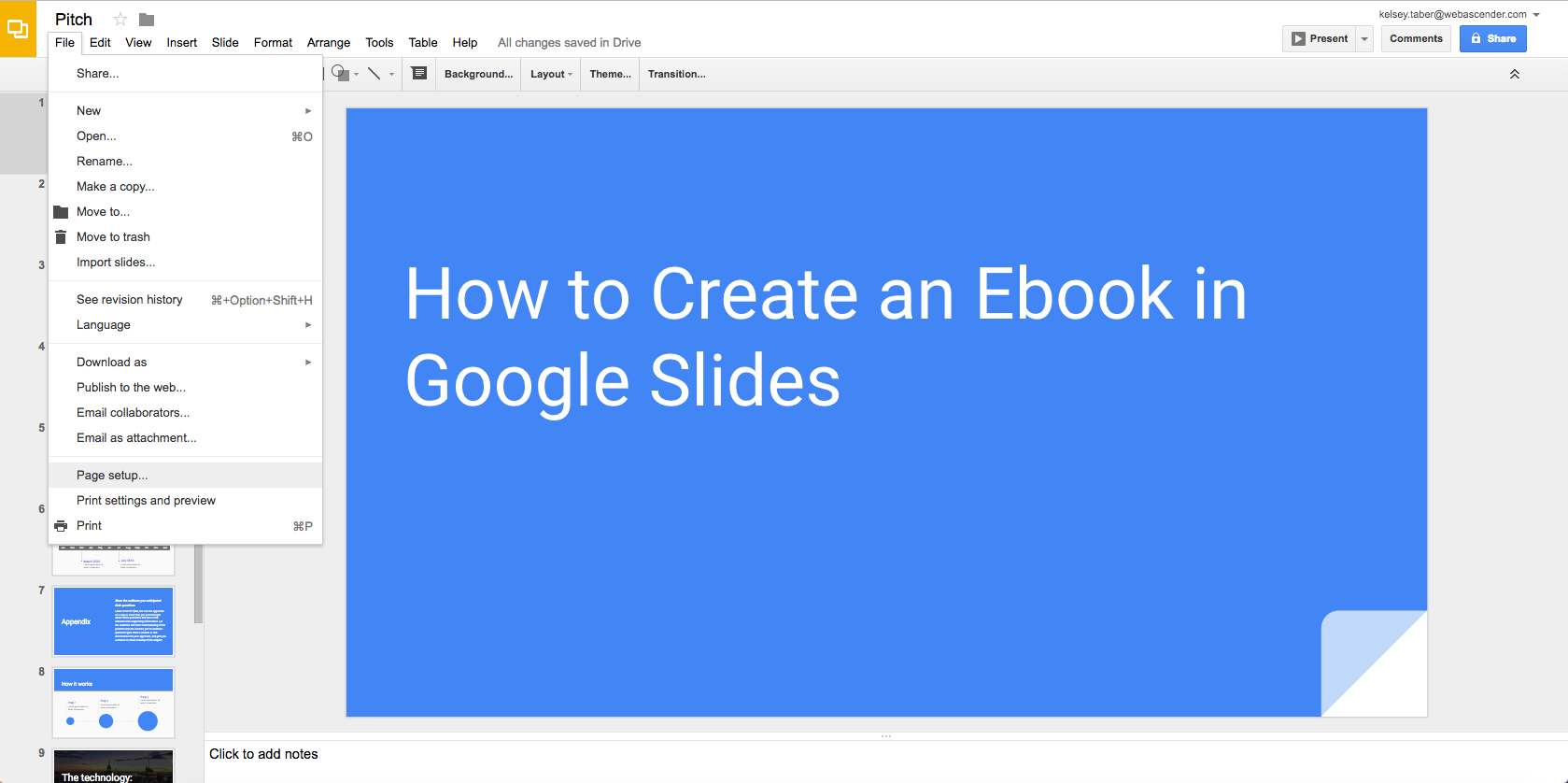
Go to:
- File → Page setup
- Custom
Set sizes like:
| Book Type | Size |
|---|---|
| Paperback | 6 x 9 inches |
| Workbook | 8.5 x 11 inches |
| Square book | 8.5 x 8.5 inches |
If you skip this, your book is dead on arrival.
Mistake 3: No Bleed Planning
If your design touches edges…
It will get cut.
Fix:
- Extend background 0.125 inch beyond edges
- Keep text inside safe area
Mistake 4: Fonts Breaking on Export
Happens more than people admit.
Fix:
👉 Use Google Fonts only
Avoid:
- Random downloaded fonts
- Script fonts for body text
Mistake 5: Overdesigning (Classic Beginner Trap)
Too many colors
Too many fonts
Too many elements
Result: looks amateur.
Fix:
👉 Stick to:
- 1–2 fonts
- 2–3 colors
- Plenty of white space
Fix It Fast: Setting Up a Proper Book Template (Clean Workflow)
Don’t overthink this.
Do this once:
- Open Slides
- Set custom size
- Create 3 master layouts:
- Title page
- Content page
- Section divider
Then:
- Add page numbers
- Set font styles
- Lock background elements
Now duplicate.
That’s your system.
When Slides Is the Wrong Tool (Be Honest Here)
Let’s not pretend it works for everything.
Avoid Slides if:
- You’re writing a 300-page novel
- You need automatic formatting
- You want complex typography
Use:
- Microsoft Word
- Adobe InDesign
Slides is for:
👉 visual-first books
The One Thing I Wish You Knew Earlier
Perfection kills momentum.
I’ve seen people spend:
- 3 weeks tweaking margins
- 2 weeks picking fonts
Meanwhile, someone else:
- Uses basic layout
- Publishes 10 books
- Makes money
Your first template will not be perfect.
Good.
Ship it anyway.
Then improve the next one.
Quick Diagnostic: Why Your Slides Book Looks “Off”
Check this fast:
- Text too close to edges? → Margin issue
- Elements not aligned? → Use alignment tools
- Pages inconsistent? → No master slides
- Export blurry? → Wrong PDF settings
Fix these and 90% of problems disappear.
Smart Add-Ons That Make Life Easier
You don’t need many tools, but these help:
- Canva → for assets
- Google Drive → version control
- Icons + illustrations (free libraries)
Keep it simple.
FAQs (Real Questions People Ask After Failing Once)
“Can I publish a Google Slides book on KDP?”
Yes. Export as print-quality PDF and upload to Amazon KDP.
“Why does my layout shift when downloading?”
Usually fonts or spacing.
Fix:
👉 Stick to Google Fonts + avoid text overflow
“Is Slides better than Canva for books?”
Depends.
- Slides → better control + structure
- Canva → easier design
Use both if needed.
“Can I make money using this?”
Yes — especially low-content books.
But only if you:
👉 publish consistently
Final Reality Check
You’re not stuck because the tool is bad.
You’re stuck because:
- You’re treating Slides like a document
- You’re skipping setup
- You’re chasing perfection
Fix those three things…
And suddenly this “presentation tool” becomes one of the fastest book creation systems out there.
You’ve got enough now to build something real.