
Let me level with you.
PDFs are one of the worst starting points for EPUB conversion.
Not because the tools are bad. Because the formats are fundamentally different.
PDF is a fixed page layout.
EPUB is reflowable text that adapts to screens.
Think of it like this:
- A PDF is a photograph of a page
- An EPUB is actual flowing text
So when someone says “convert this PDF perfectly to EPUB,” the software basically has to reverse-engineer the document.
Sometimes it works beautifully.
Sometimes it looks like a blender attacked your book.
The trick is knowing which PDFs convert cleanly and which ones need intervention.
Let’s walk through the real-world approach that actually works.
First Question You Must Ask: Is This a Real Text PDF?
Before touching any converter, check this.
Open the PDF.
Try to highlight a sentence with your mouse.
Two possible outcomes:
| What Happens | What It Means | What To Do |
|---|---|---|
| Text highlights normally | Real text PDF | Easy conversion |
| Whole page highlights like an image | Scanned PDF | Requires OCR first |
If it’s a scanned PDF, no converter can magically read it.
You need OCR (Optical Character Recognition) first.
Tools that handle this well:
- Adobe Acrobat Pro
- ABBYY FineReader
- Google Drive OCR
Once OCR is done, save a new PDF with selectable text. Now you’re ready.
The Tool Most Professionals Use: Calibre
I’ve watched hundreds of people try online converters first.
Most of them butcher formatting.
If you want control, use Calibre. It’s free and built for ebook workflows.
Here’s the simple process.
Install Calibre.
Then:
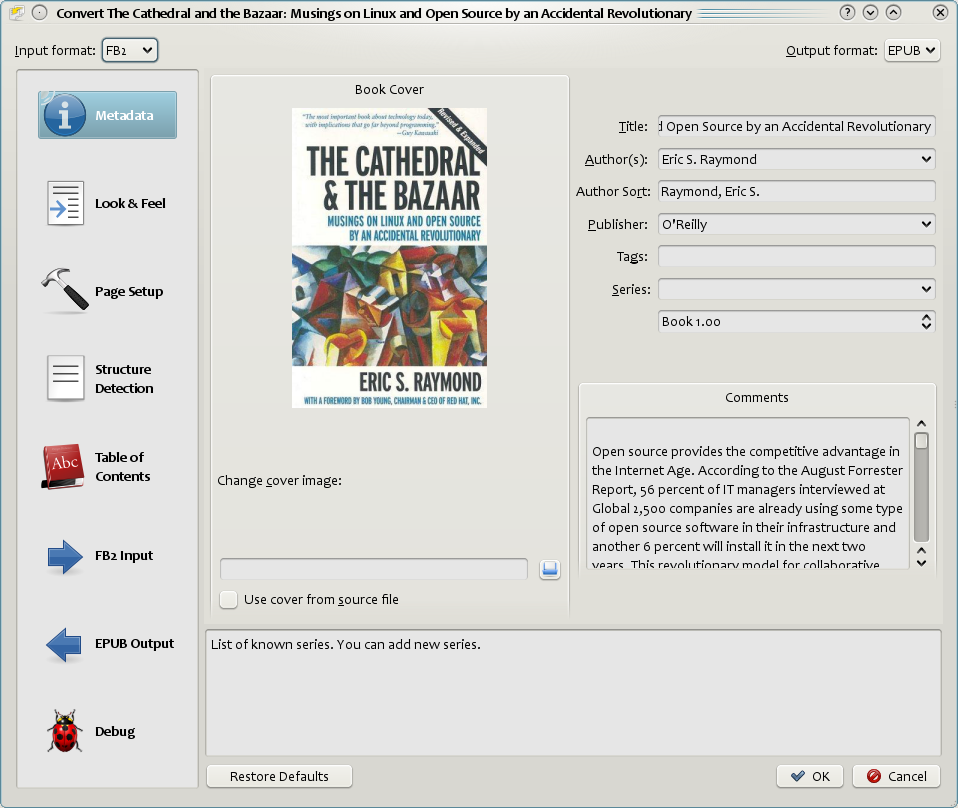
- Click Add Books
- Select your PDF
- Click Convert Books
- Choose EPUB as output format
- Hit OK
Done.
But here’s the part most people skip.
Check the conversion settings before hitting OK.
This is where formatting gets saved… or destroyed.
The One Setting That Saves Most Conversions
Inside Calibre’s conversion window you’ll see “Heuristic Processing.”
Leave it OFF at first.
Sounds counterintuitive. But this feature tries to “guess” formatting rules and sometimes makes things worse.
Only turn it on if the initial EPUB looks messy.
Instead focus on this section:
Structure Detection
Make sure Calibre detects:
- Chapters
- Page breaks
- Headings
Otherwise your EPUB becomes one giant wall of text.
The Real Problem: PDFs Often Hide Structure
Here’s something people don’t realize.
Most PDFs don’t actually contain headings or chapters.
They only look like they do.
Example:
CHAPTER 3
The Storm
To a human that’s a heading.
To conversion software it might just be:
big bold text.
Which means the converter can’t automatically create navigation.
That’s why EPUBs sometimes lose:
- Table of contents
- Chapter navigation
- Proper page breaks
The fix? Manual cleanup.
The Step Most People Skip (But Pros Never Do)
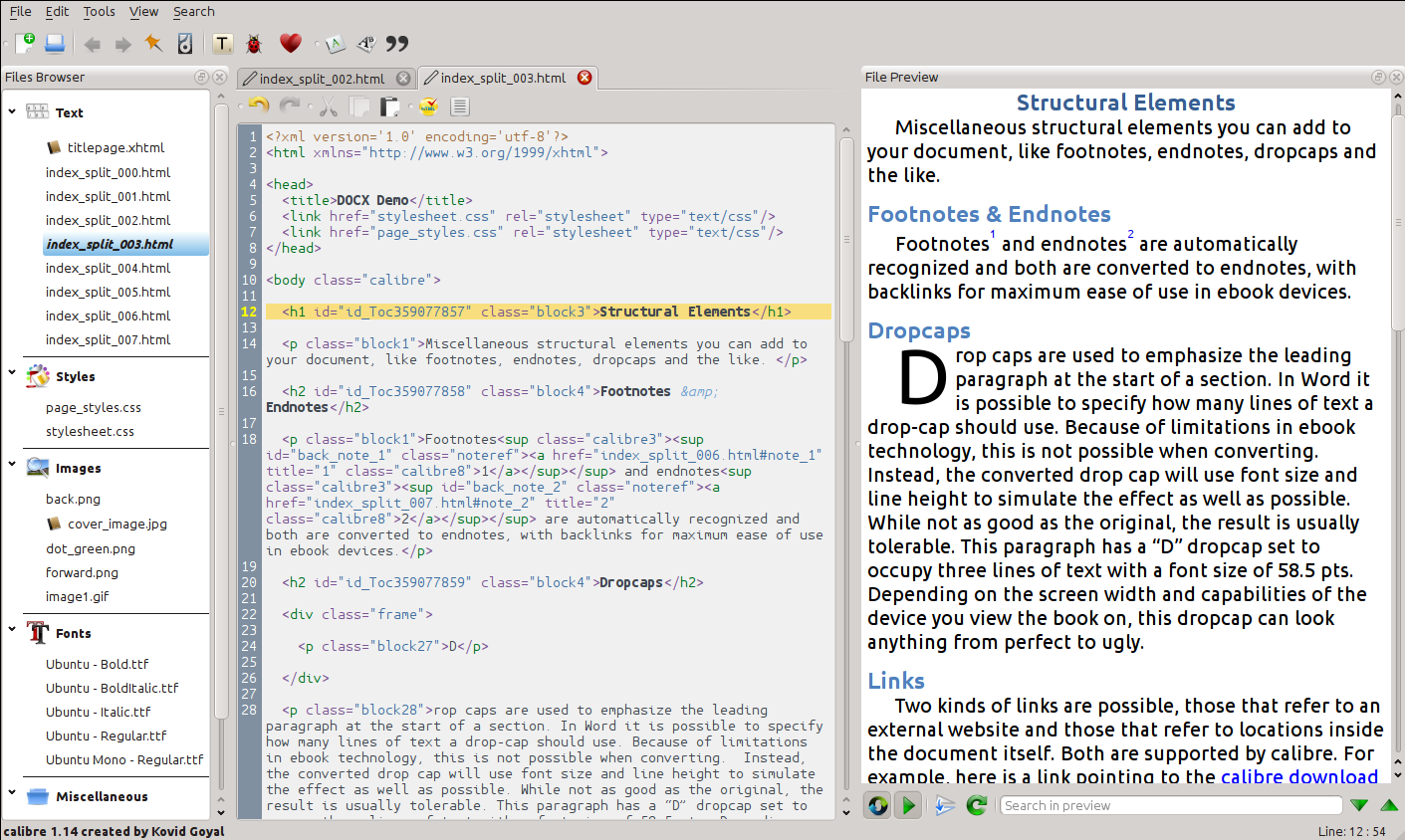
After conversion, open the EPUB in an editor.
Two solid ones:
- Sigil
- Calibre’s built-in editor
Look for common issues:
- Chapter titles merged into paragraphs
- Broken italics
- Random line breaks
- Weird spacing
Fixing these usually takes 5–10 minutes, not hours.
And it makes the difference between a sloppy ebook and a professional one.
A Trick That Preserves Formatting Better
Sometimes the best workflow is not PDF → EPUB directly.
Instead try this pipeline:
| Step | Why |
|---|---|
| PDF → DOCX | Word understands structure better |
| Clean formatting in Word | Fix headings and paragraphs |
| DOCX → EPUB | Much cleaner conversion |
Word files contain real structural information.
Converters love that.
PDFs… not so much.
The Edge Case That Wrecks Conversions
Some PDFs are layout heavy.
Examples:
- Magazines
- Academic journals
- Multi-column layouts
- Text wrapped around images
EPUB doesn’t support that style well.
So conversion tools guess.
Results usually include:
- Images floating in random places
- Columns merging into chaos
- Captions separated from images
In these cases, manual rebuilding is faster than fixing the conversion.
Yes, really.
Quick Diagnostic Checklist Before You Convert
Run through this list first.
It prevents most disasters.
- Can you highlight text in the PDF?
- Is the document single-column?
- Are headings consistent?
- Do chapters start on new pages?
- Are images placed between paragraphs (not floating)?
If the answer to most of those is yes, conversion will likely be clean.
If not… expect cleanup.
The Simple Workflow That Works 90% of the Time
Here’s the routine I teach new staff.
- Check if the PDF contains selectable text
- If not, run OCR
- Import into Calibre
- Convert to EPUB
- Open EPUB in Sigil or Calibre editor
- Fix headings and spacing
- Export final EPUB
Nothing fancy.
But it works.
One Truth Nobody Tells You About EPUB Conversion
Perfect PDF → EPUB conversion almost never happens automatically.
Even publishers with expensive tools still do manual checks.
The goal isn’t perfection on the first click.
The goal is 80–90% accuracy from the converter, then a few minutes of cleanup.
Once you accept that, the process becomes predictable instead of frustrating.
And once you’ve done it a few times, fixing a converted EPUB becomes second nature.
Five minutes. Maybe ten.
Then the file is clean, readable, and ready for any ebook reader.