
Alright. Let’s talk like two people who’ve actually been in this mess.
You’re here because something didn’t work.
Maybe your book got rejected on Amazon KDP.
Maybe your PDF looks perfect on your screen but completely broken in preview.
Or worse… you uploaded it, hit publish, and then saw your book live with margins cut, text floating, or page numbers all over the place.
Yeah. Happens to everyone.
I’ve seen authors spend weeks writing a book… and then lose 80% of their sanity on formatting alone.
So let’s fix that properly. No fluff. No theory. Just what actually works.
First — What Amazon KDP Actually Is (Without the Marketing BS)
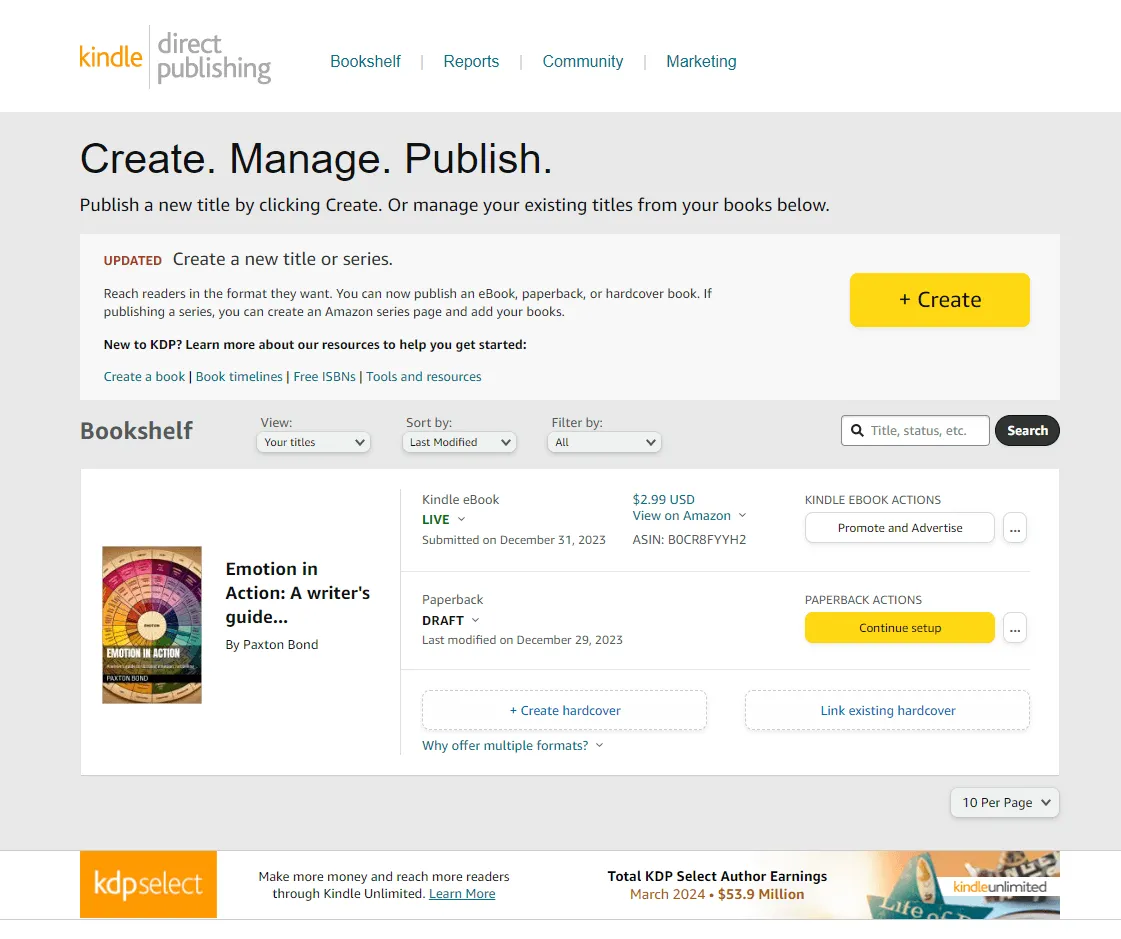
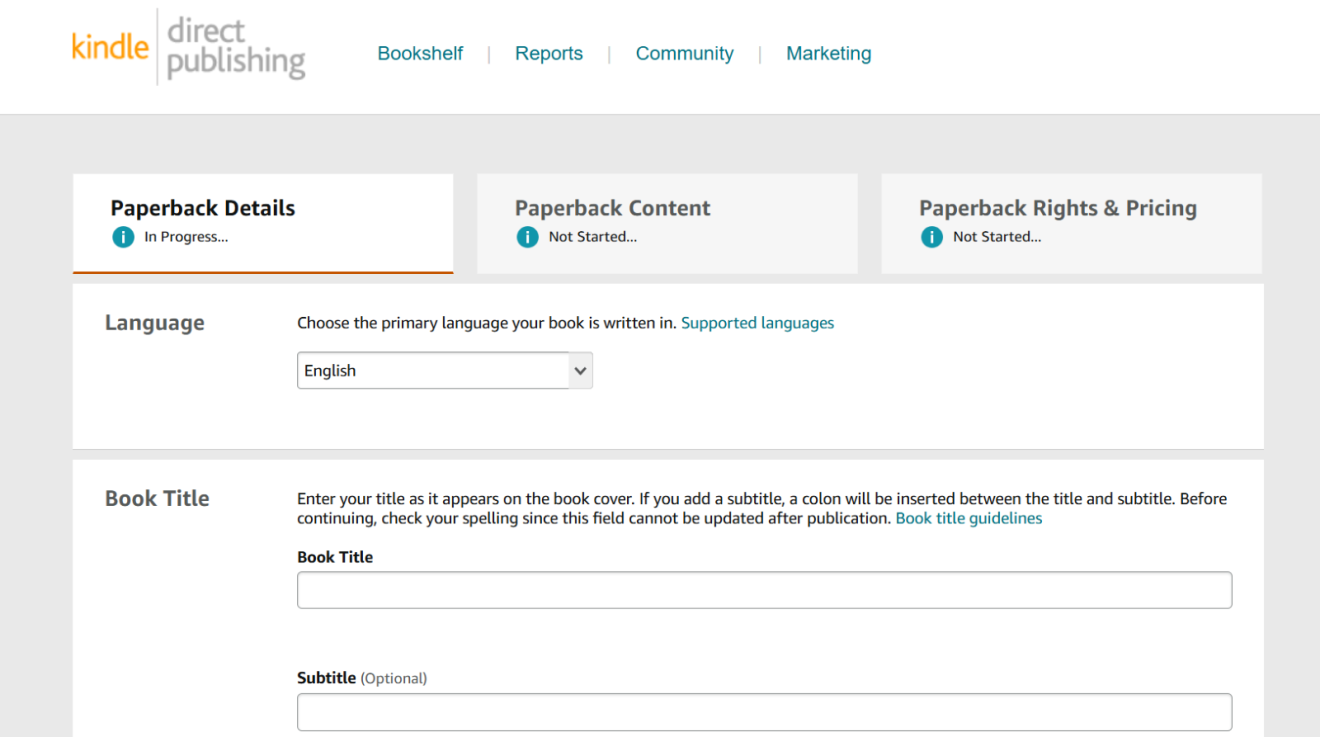

At its core, Amazon KDP is simple:
You upload a file → Amazon prints or delivers it → you get paid.
That’s it.
But the part nobody tells you?
KDP is not a writing platform. It’s a distribution engine.
It doesn’t care how good your writing is.
It only cares if your file behaves properly.
That’s where people get wrecked.
The Two Worlds Inside KDP (Don’t Mix Them Up)
This is the first mistake beginners make.
There are two completely different systems:
| Format | What It Is | File Type | Behavior |
|---|---|---|---|
| Kindle (eBook) | Digital reading | EPUB / DOCX | Flexible, reflowable |
| Paperback / Hardcover | Printed book | Fixed layout |
If you format for Kindle and upload to print → it breaks.
If you format for print and upload to Kindle → it breaks.
Different rules. Different logic. Different headaches.
The Real Problem You’re Facing (Even If You Don’t Know It Yet)
Most people think:
“Formatting is about making it look nice.”
No.
Formatting is about control.
And you don’t have it yet.
What’s actually happening:
- Word is inserting invisible spacing you don’t see
- Page breaks are inconsistent
- Margins aren’t aligned with print specs
- Fonts aren’t embedded
- Paragraph styles are random
So your file looks fine on your laptop…
But when KDP processes it, it reinterprets everything.
That’s why things shift.
The #1 Rule That Saves You Months of Pain
Stop formatting manually. Start formatting structurally.
If you remember nothing else, remember that.
Most beginners do this:
- Press Enter 10 times to move text
- Use spaces to center things
- Manually bold headings
That works visually. But under the hood? Chaos.
KDP hates chaos.
How Kindle (eBook) Formatting Actually Works
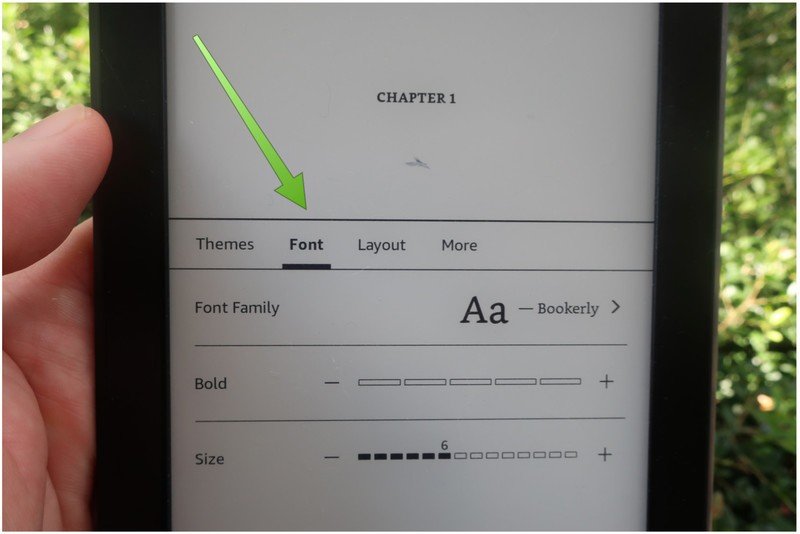

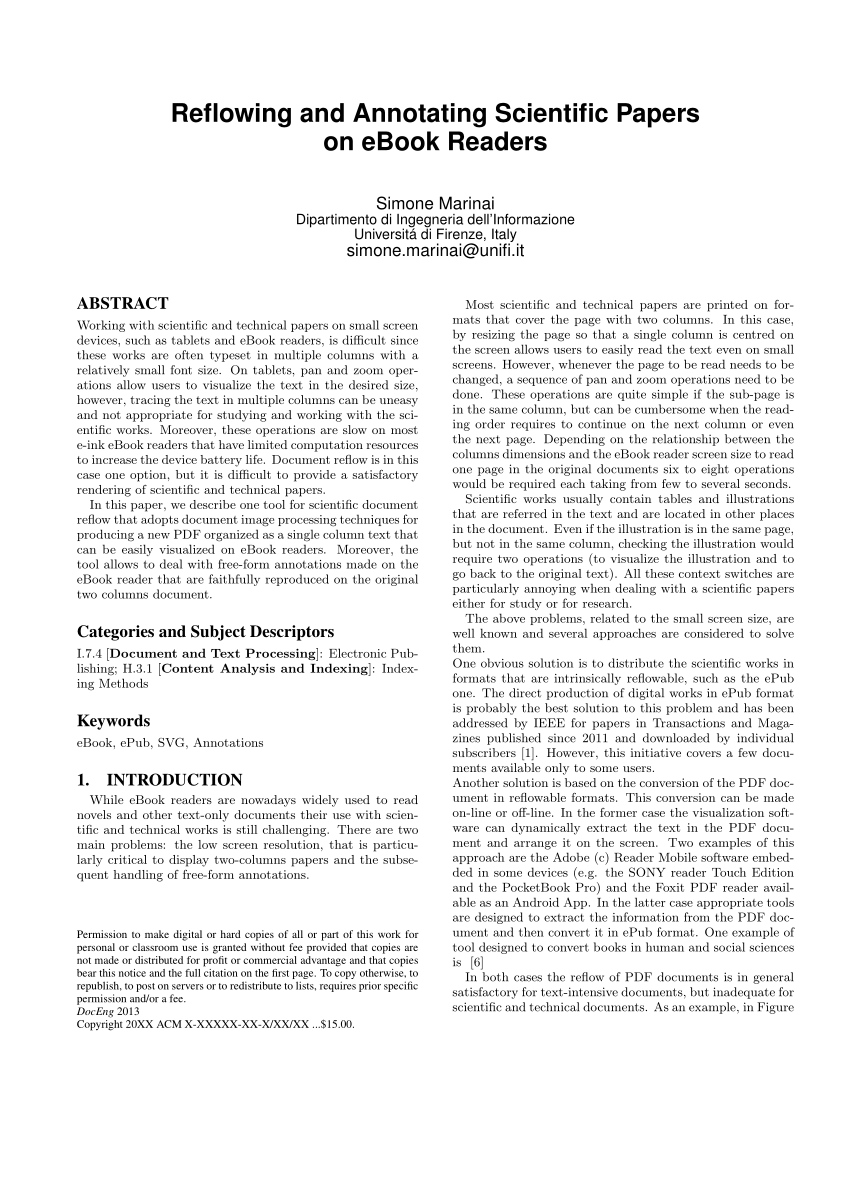
Think of Kindle like water.
It reshapes based on:
- Screen size
- Font size
- Device (phone vs tablet vs Kindle)
So:
You don’t control layout. You control structure.
What You MUST Do for Kindle Formatting
1. Use Styles — Not Manual Formatting
In Microsoft Word:
- Use Heading 1 for chapter titles
- Use Normal for body text
Don’t just increase font size and call it a heading.
Why?
Because Kindle builds navigation (table of contents) from styles.
2. Kill All Extra Spaces
Here’s a quick check:
- Press
Ctrl + Shift + 8(show formatting marks)
You’ll probably see:
- Multiple ¶ (paragraph marks)
- Random spaces
Delete all unnecessary ones.
One paragraph = one Enter. No exceptions.
3. Indent Properly (This is where people mess up)
Do NOT use spaces or tabs.
Instead:
- Select all text
- Right-click → Paragraph
- Set First line indent = 0.3”
That’s it.
4. Insert Page Breaks Correctly
When starting a new chapter:
- Go to Insert → Page Break
Don’t press Enter repeatedly.
This is the part everyone ignores… and then wonders why chapters start randomly.
5. Keep Fonts Simple
Stick to:
- Times New Roman
- Garamond
- Arial
Nothing fancy.
Because Kindle may override them anyway.
6. Export Properly
Best option:
- Save as DOCX → upload to KDP
OR - Convert to EPUB (cleaner)
Print Book Formatting (This Is Where Most People Fail Hard)

Print is unforgiving.
What you see = what gets printed.
And if it’s wrong… it stays wrong.
The Hidden Concept You Must Understand First
Trim size.
This is the physical size of your book.
Common ones:
- 5” x 8”
- 6” x 9” (most popular)
Everything depends on this.
Margins. Layout. Page count.
The #1 Mistake in Print Formatting
People set margins like a school assignment.
Wrong.
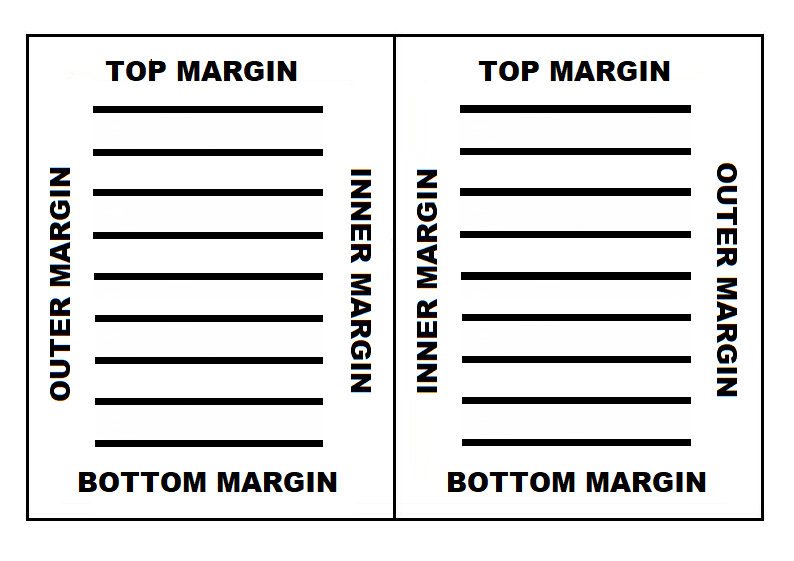
Books need gutter margins (extra space for binding).
Proper Margin Setup (For 6×9 Example)
In Word:
- Top: 0.75”
- Bottom: 0.75”
- Outside: 0.5”
- Inside (gutter): 0.75” – 1”
Inside margin is ALWAYS bigger.
Otherwise your text disappears into the spine.
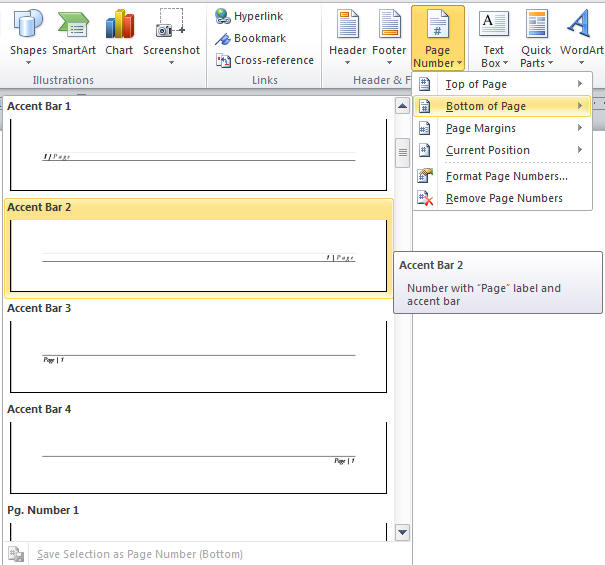
Page Numbers — Where They Actually Go
Not random.
Standard placement:
- Bottom center
OR - Top outer corner
And:
- No page number on chapter start pages
- Front matter uses Roman numerals (optional)
Headers & Footers (Don’t Overcomplicate This)
Most beginners over-design this.
Keep it simple:
- Left page: Book title
- Right page: Author name
That’s it.
Font Size That Actually Works
For print:
- 10pt – 12pt (body text)
- 14pt – 18pt (chapter titles)
Anything smaller? Hard to read.
Anything bigger? Looks amateur.
Line Spacing That Feels Like a Real Book
Use:
- 1.15 – 1.5 line spacing
Too tight = unreadable
Too loose = looks like a school project
The File Type That Saves You From Rejection
For print:
Always upload PDF.
And not just any PDF.
Make sure:
- Fonts are embedded
- No shifting layout
- Correct trim size
Export from Word:
File → Save As → PDF → Standard (not minimum size)
The Previewer Is Not Optional (This Is Where You Catch Disaster)
Inside KDP, there’s a preview tool.
Use it.
Carefully.
Look for:
- Blank pages
- Cut-off text
- Misaligned margins
- Weird spacing
If something looks “slightly off”… it will look worse in print.
The Weird Edge Cases Nobody Talks About
You’ll run into at least one of these:
1. Random Blank Pages
Cause:
- Section breaks
- Odd/even page settings
Fix:
Delete extra breaks and recheck layout.
2. Table of Contents Not Clicking (eBook)
Cause:
- Not using heading styles
Fix:
Reapply Heading 1 properly.
3. Text Shifts After Upload
Cause:
- Hidden formatting
- Unsupported fonts
Fix:
Copy everything → paste into a fresh Word document → reformat cleanly.
4. Cover Doesn’t Align
Different problem entirely.
Use KDP cover calculator.
Don’t guess spine width.
The Simple Setup That Actually Works (My Default System)
If someone handed me your messy file, here’s what I’d do:
Clean Reset
- Copy all text
- Paste into Notepad (removes formatting)
- Paste back into Word
Rebuild Structure
- Apply Heading 1 to chapters
- Set body text style
Set Layout
- Trim size first
- Margins second
- Then spacing
Export & Test
- Export PDF
- Upload to preview
- Fix issues
Repeat until clean.
Tools That Make Your Life Easier (Use Them or Suffer)
- Microsoft Word — default, works fine
- Kindle Create — good for beginners
- Adobe InDesign — pro-level
If you’re just starting:
Word + KDP preview = enough.
Don’t overcomplicate.
The One Thing I Wish Everyone Knew Before Starting
You don’t “fix formatting at the end.”
You build it correctly from the beginning.
Otherwise you’ll:
- Write 200 pages
- Then spend 2 days fixing layout
- Then break everything again
Formatting is not decoration.
It’s structure.
Quick Diagnostic Checklist (Use This Before Upload)
Scan your file:
- Are headings using styles?
- Are there extra spaces or tabs?
- Are margins correct for print?
- Is the file in correct format (DOCX vs PDF)?
- Did you preview it fully?
If any answer is “not sure”…
That’s where your problem is.
When You’re Still Stuck (The Honest Truth)
Sometimes the issue isn’t obvious.
At that point:
- Start fresh
- Rebuild clean
- Don’t patch broken files
Because patching leads to hidden errors.
And hidden errors always come back.
Final Reality Check
KDP is not hard.
But it is precise.
Once you understand:
- Structure vs appearance
- Kindle vs print differences
- Clean formatting habits
Everything becomes predictable.
And predictable means:
No rejections
No broken layouts
No surprises
You’ll upload once… and it just works.
That’s the point you’re aiming for.
If you want, I can take your exact book (or even just one messy page) and show you exactly what’s wrong and how I’d fix it. That’s usually where things finally click.